Mathcad is a computational notebook software available on Windows, known for its graphical what-you-see-is-what-you-get (WYSIWYG) editor and integrated engineering units system.
Mathcad is lackluster at iterating and abstracting worksheets. This Excel template provides some basic automation tools for MathCad, and does not require any additional programming or installation beyond Excel and Mathcad.
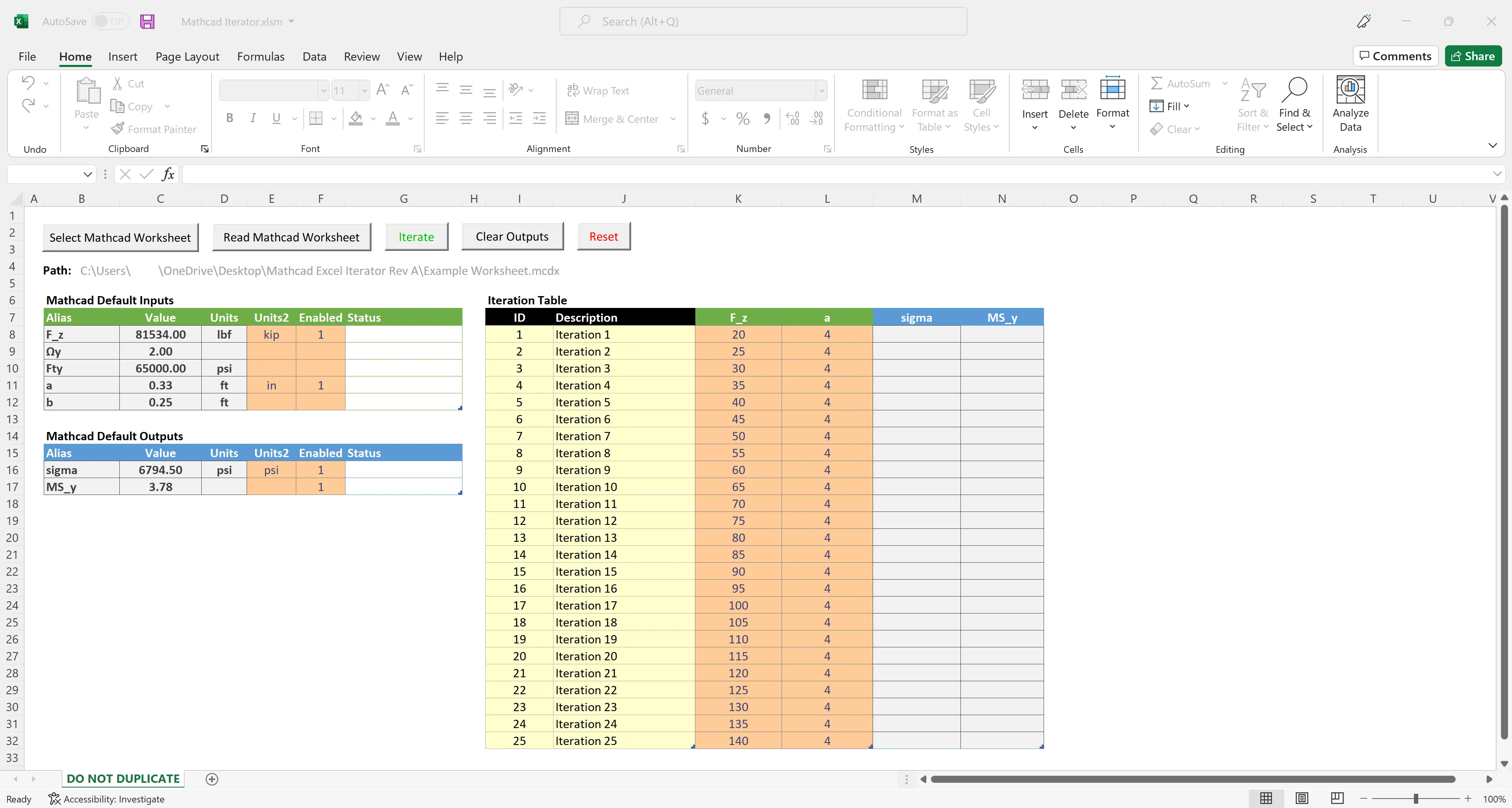
Overview
- Select a single Mathcad worksheet using a file selector dialog.
- Automatically read inputs, outputs, and default units for a Mathcad worksheet.
- Loop through as many iterations, inputs, and outputs as are supported by Mathcad.
- Override input and outputs units.
- Mathcad Worksheets are never saved. Future releases may allow for you to save the Mathcad worksheet with a specified iteration.
-
Ensure correct spelling of variable aliases.
-
Ensure correct Mathcad units syntax
-
Do not duplicate tables or tabs. The entire Excel document should be duplicated at the file level. This will change in future releases.
-
Do not rename tables. However, because tables are used, the template is less sensitive to format changes. For example, you can move a table and it will still work so long as the table name is hasn’t changed.
-
It is recommended that you close Mathcad and all open worksheets prior to running scripts in this tool.
Requirements
- Windows
- Mathcad Prime 3.1
- Excel
Quick start
- Designate inputs and outputs in the Mathcad worksheet of interest. See
more. The file
Example Worksheet.mcdxbundled with the release shows what an alias list might look like. - Open the template.
- Click Select Mathcad Worksheet and browse for the file.
- Click Read Mathcad Worksheet.
- Configure
MCInputsTableandMCOutputsTable(see Tables). - Rename and create columns in
InputsTableandOutputsTablefor each enabled row inMCInputsTableandMCOutputsTablerespectively. - Add input values in
InputsTablefor each alias and iteration. - Click Iterate to begin iterating. Outputs will populate the
OutputsTable. This operation could take a while.
Buttons
- Select Mathcad Worksheet - Opens a file dialog to select the location of the Mathcad worksheet. Network drives are allowable, but may not be as fast as local.
- Read Mathcad Worksheet - Reads the selected worksheet file for inputs and outputs, then populates the inputs and outputs table with default units and initial values.
- Iterate - Runs all iterations in the iteration table.
- Clear Outputs - Clears the values in the outputs columns in the iteration table.
- Reset - Clears all tables and the Mathcad worksheet path.
Tables
All tables in this template are true structured tables. I highly recommend using right-click operations on tables in order to change their size.
MCInputsTable/MCOutputsTable- Show the inputs and outputs defined in the Mathcad worksheet after runningRead Mathcad Worksheet. Allows for some granular control.Alias- Name of variable define in Mathcad.Value- Existing value of the variable in the worksheet.Units- Units of the default value.Units2- Units of the column in the iteration table.Enabled-0orEMPTYfor disabled,1for enabled. Boolean value to enable the column in the iteration table. Disabled inputs will use the default value and units listed for that input. Rows that are enabled must have a corresponding column of the same alias inInputsTableandOutputsTable.Status- Displays error messages. They appear in the order below, as only one is shown at a time.- MISSING COLUMN - Shows if an enabled input/output is missing a column in
InputsTableorOutputsTable, respectively. - MISSING UNITS - Shows if an enabled column is missing a value in
Units2. The default units cannot be used if the row is enabled, but they can be manually copied over.
- MISSING COLUMN - Shows if an enabled input/output is missing a column in
IterationsTable- Where you store information about each iteration. The ID and Description are for your information only. They do not influence calculations, and additional columns may be added to your liking.InputsTable- Where input data is stored for each iteration. You may include more columns than there are inputs/outputs designated in the Mathcad worksheet, since theMCInputsTableandMCOutputsTablecontrol which are enabled.
Tutorial
This tutorial walks you through an example Mathcad worksheet bundled with the release download. Begin by opening the downloaded Excel file.
- Open
Mathcad Iterator.xlsm. - You may need to click Enable Content in order to trust this document.

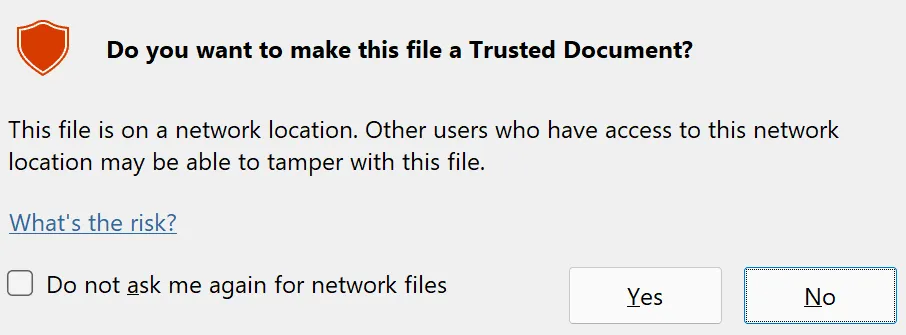
- An additional dialog may pop up if you opened the file from a cloud location.
This allows the VBA scripts inside the spreadsheet to run. If this did not
occur, proceed.
- Click Select Mathcad Worksheet and browse to
Example Worksheet.mcdx, which comes bundled with the release. Double click on the worksheet or single click, and then click Open. - Click Read Mathcad Worksheet. An additional dialog will ask to confirm
that you would like to clear
MCInputsTableandMCOutputsTable.InputsTableandOutputsTablewill remain as-is. - You should see the below data now populated inside
MCInputsTableandMCOutputsTable. This shows all of the designated inputs and outputs of the worksheet, their current value, and units. Note thatMS_yis unitless.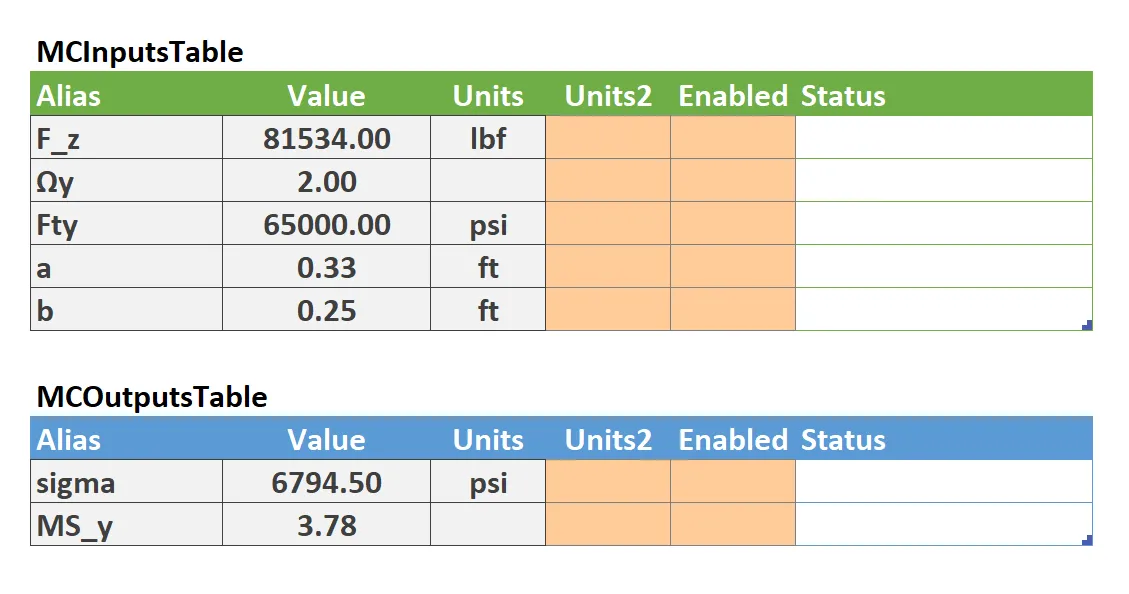
- Fill in the tables with the following data.
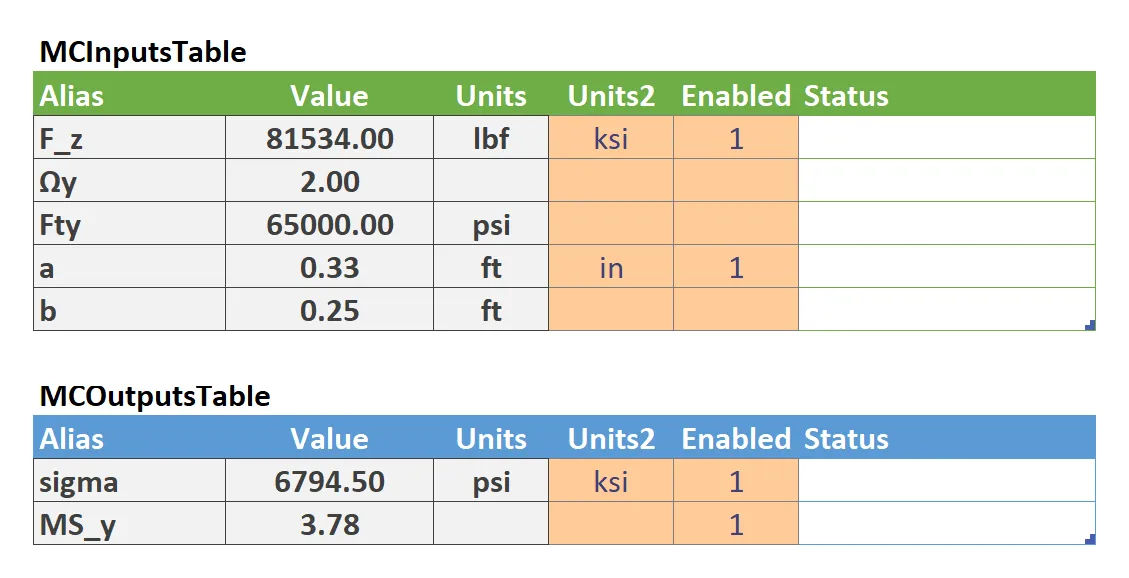
- The
InputsTablehas been prepopulated with20iterations of values forF_zanda.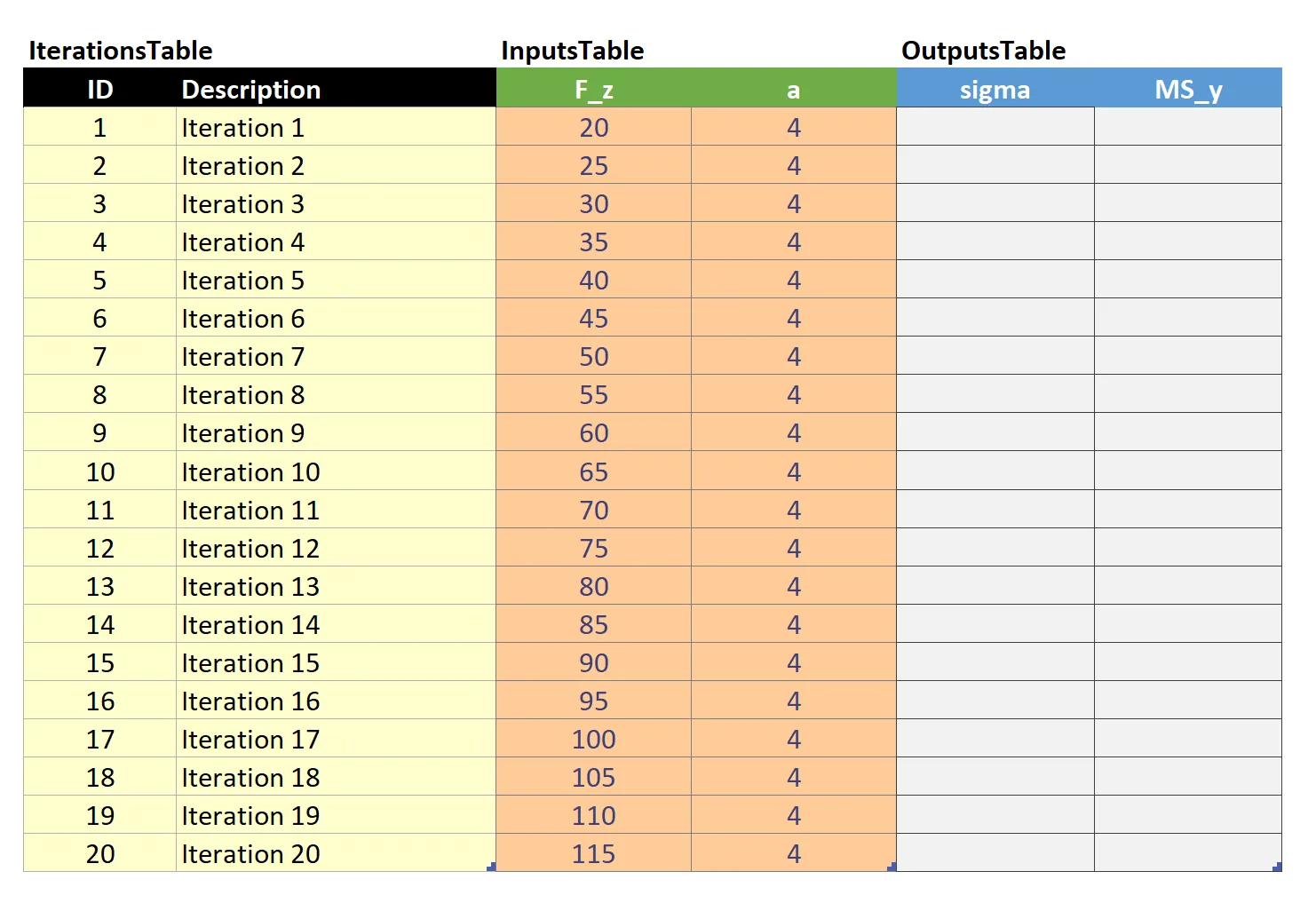
- Click Iterate to begin the loop. Outputs should begin appearing in
OutputsTable.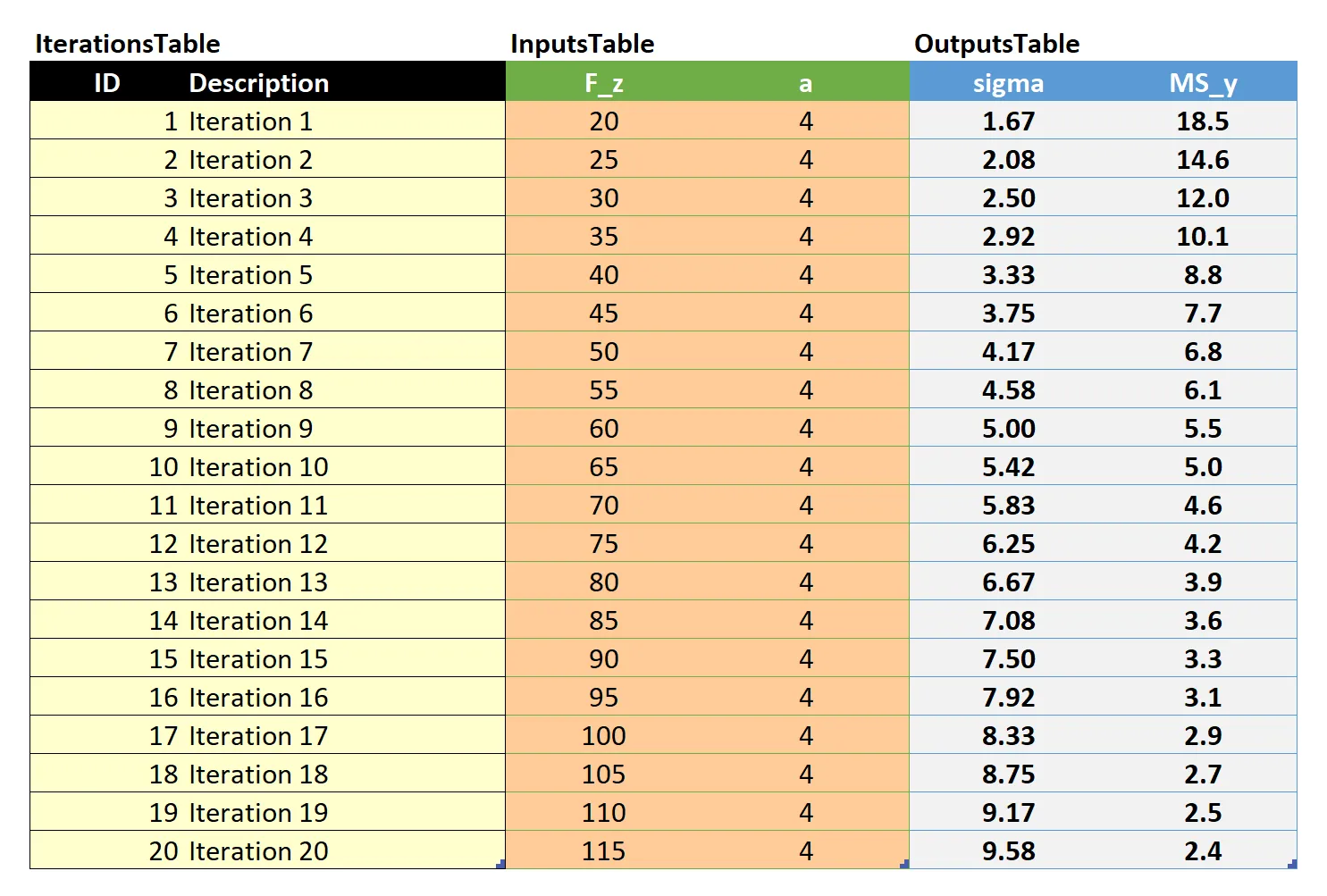
Releases
| Version | Date | Changes | Download |
|---|---|---|---|
| v1 | 2022-04-14 | Initial release. | 100025v1-met.zip |
| v2 | 2022-07-29 | Licensed into public domain. | 100025v2-met.zip |
API Reference
Mathcad is lackluster at iterating and abstracting worksheets. Attempting to turn every expression into a function misses out on the benefits of Mathcad’s graphical representation. It is recommend to create a worksheet that does a single (and possibly complex) calculation well for a single case, and then use another scripting language to change variables and run iterative studies.
The Mathcad API is a Component Object Model (COM) interface for interacting with Mathcad using a library of different commands. The API works with PTC Mathcad Prime 3.1 and later. COM is a standard interface for automating Windows applications. See the Official Documentation.
The gist of using the API includes instantiating instances of the Mathcad application or worksheet classes as objects, then calling methods on that object to manipulate data.
The API supports JavaScript, C++, C#, VB, VB Script, VBA, and any other language with a COM library. The Python wrapper MathcadPy exists but is unmaintained. VBA is especially useful as it is pre-installed on any Windows machine that has MS Office, and works directly inside Excel for easily passing tabulated data through a Mathcad worksheet.
Library
The type library file Ptc.MathcadPrime.Automation.tlb lives in the root
directory of your Mathcad installation. It can be opened and explored inside
Visual Studio using the Object
Browser to see which methods and classes exist and how to use them. I do not
believe that VS Code has the ability to open this library out of the box, but
please reach out if I am wrong.
Visual Studio setup
The .NET desktop development workload must be installed with Visual Studio. Open Visual Studio Installer, and modify your installation of Visual Studio. Under workloads, enable .NET desktop development.
Designate inputs and outputs
Variables must be flagged as either an input or an output if you want it to be exposed to the API. Part of this process is also specifying an alias for that variable that is machine readable (Greek characters and underscores are supported). See To Designate Input and Output Regions for help on managing I/O in a Mathcad worksheet.
Mathcad does not check for unique values across inputs and outputs. Use unique names for each variable.
Units
Units shall be in string format. Use asterisks * and forward-slashes / for
chaining units. The units are not well-documented, but are believed to follow
the same input notation at Mathcad e.g. pound-force as lbf.
VBA Reference
Manipulating a Mathcad worksheet with Excel is easier than it sounds. VBA natively supports communication with the Mathcad API with any additional installations or libraries. You only need to have Mathcad installed on the machine.
Initialize Mathcad and open worksheet
Dim Mathcad As Object
Dim MathcadWorksheet As Object
Set Mathcad = CreateObject("MathcadPrime.Application")
Mathcad.Visible = False ' Hide Mathcad GUI
Set MathcadWorksheet = Mathcad.Open(filePath)
Get inputs from worksheet
Dim MathcadInputs: Set MathcadInputs = MathcadWorksheet.Inputs
Dim countMathcadInputs As Integer
countMathcadInputs = MathcadInputs.Count
If countMathcadInputs = 0 Then
	MsgBox ("Error: This worksheet has no inputs.")
	Exit Sub
End If
Get outputs from worksheet
Dim MathcadOutputs: Set MathcadOutputs = MathcadWorksheet.Outputs
Dim countMathcadOutputs As Integer
countMathcadOutputs = MathcadOutputs.Count
If countMathcadOutputs = 0 Then
	MsgBox ("Error: This worksheet has no outputs.")
	Exit Sub
End If
Other Templates
- 1D Tolerance Analysis - Download
- Area of Overlapping Circles - Download
- Cooking Units - Download
- LED Junction Temperature - Download